Norse Subscriptions help
Show subscriptions on product pages
Put your plans' choices above the buy buttons, and choose the widget's design, selling points and words.
The subscription widget is where customers choose between a one-time purchase and a subscription on the product page. You add it to your theme and choose its design under Customer experience > Subscription widget. Your theme's code isn't changed.
Before you start
Publish at least one plan with products. See Create a plan.
Put it in your theme
- Open Customer experience and then Subscription widget. The card at the top says where the widget shows now.
- If it says Not on your product pages yet, press Add to my theme. Shopify opens your theme with automatic placement switched on, or with the block added when your product page has no buy buttons block.
- Press Save in the theme editor and come back. The card then says Live, placed automatically or Live on your product pages.
The link in the card, such as Other ways to place it, explains the two ways to place it: Automatic placement, which puts the choices above the buy buttons on every product with a plan, and the Subscription options block, for another spot on the page.
Choose the design
- Under Widget design, press Change widget design.
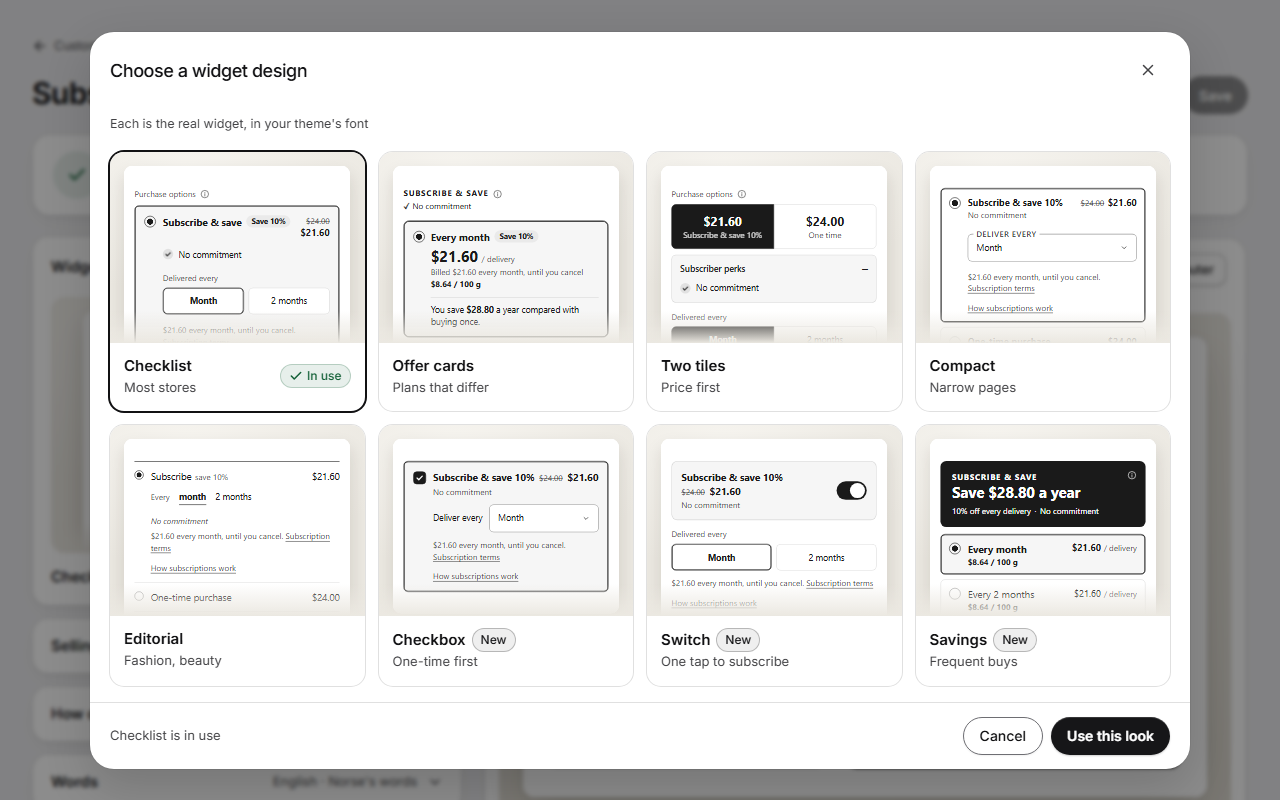
- In Choose a widget design, all eight designs show side by side, each the real widget in your theme's font: Checklist, Offer cards, Two tiles, Compact, Editorial, Checkbox, Switch and Savings.
- Click one and press Use this look. Cancel closes the window with nothing changed.
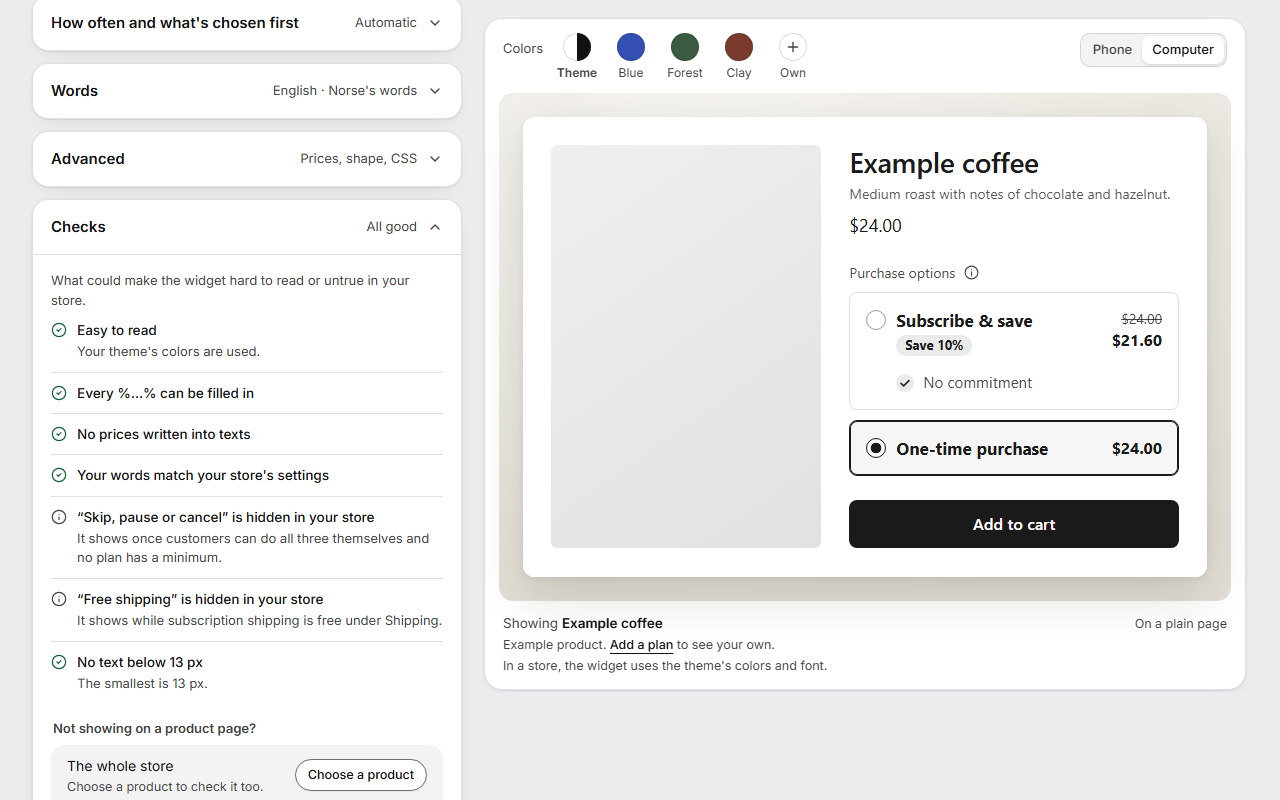
- Look at the preview. Above it, Colors offers Theme (your theme's colors), up to three accent colors and Own. Phone and Computer change the screen, and Change product shows another of your products.
- Press Save. Nothing changes in your store before you do.
Change the settings
- Selling points: tick up to three. The ready-made ones are "Save 10% on every delivery" (with your plans' real saving), "Skip, pause or cancel anytime", "Choose how often", "Free shipping" and "No commitment". Your own words adds one of your own.
- How often and what's chosen first: the rhythms from your published plans. Make it first changes which one is Chosen first. Chosen when the page opens is one-time purchase by default, as Shopify recommends.
- Words: the heading, the one-time and subscribe options and the buy button's words, per language.
- Advanced: choices, prices, shape and type, colors, how it works, a design per product, and Custom CSS. Reset this look puts back the design's own shape, prices and colors, and keeps your words, selling points and products.
- Checks: what could make the widget hard to read or untrue in your store, such as text under 4.5:1 contrast, a price written into a text, or words that promise something your settings don't allow.
What the customer sees
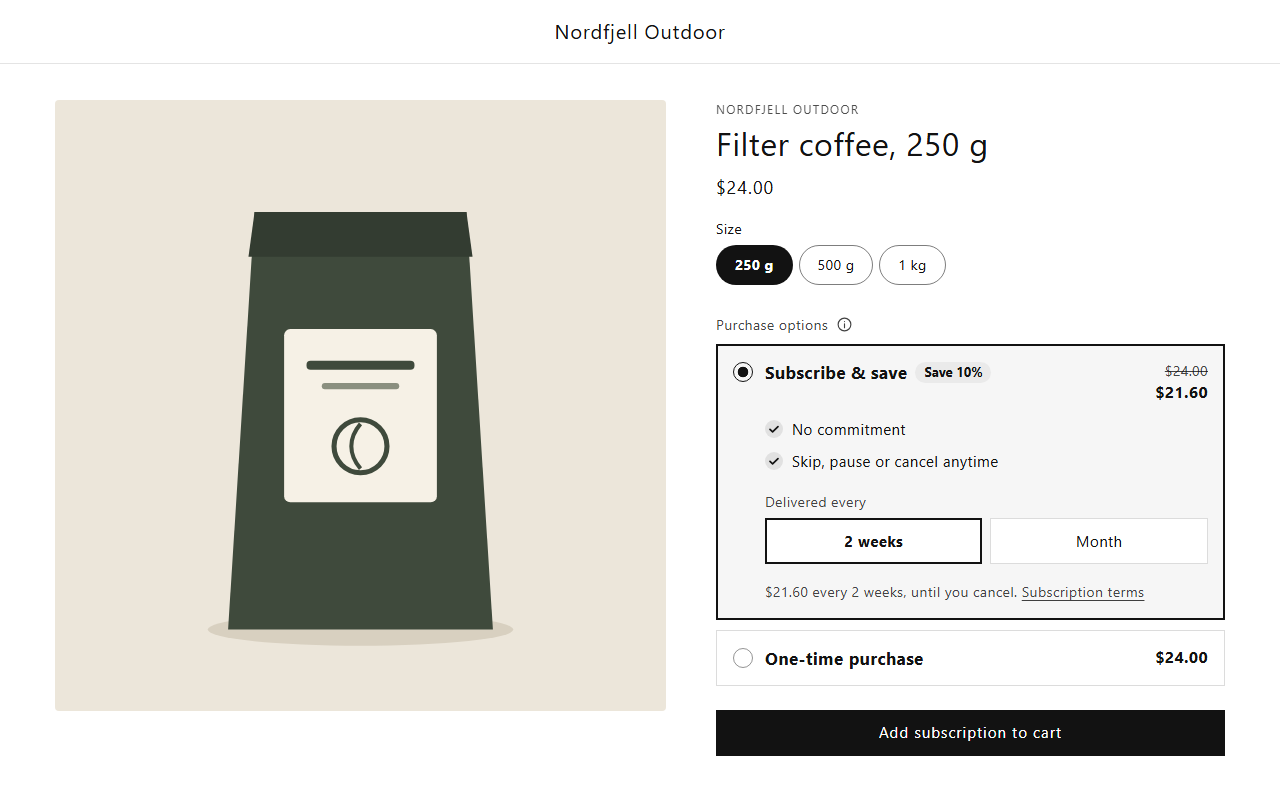
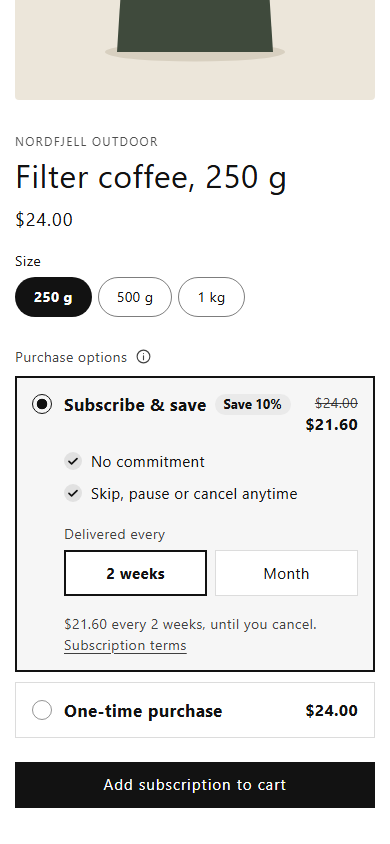
By default "One-time purchase" is chosen, with "Subscribe & save" beside it. When the customer chooses the subscription, a line says what it costs and that it renews, such as "$21.60 every 2 weeks, until you cancel." It shows in every language, even when you turn off the plan's description or the selling points.
Good to know
- The widget only shows plans made in Norse Subscriptions. Plans from other apps on the same product don't appear in it.
- Each selling point shows only where it is true. "Free shipping" needs free subscription shipping under Shipping. "No commitment" is left out where a plan has a minimum number of deliveries. "Skip, pause or cancel anytime" needs customers to be able to do all three themselves.
- If the subscription is chosen for the shopper when the page opens, Checks warns you. Shopify recommends one-time first, and the EU asks for clear consent to repeat payments.
- Not showing on a product page?, under Checks, says why the choices may be missing on a product. It can't see a page drawn by a script after it loads, or a store behind a password.
- When you publish a new theme without the widget, Overview and this page say so, with a button that puts it back.
- Page builders such as PageFly and GemPages need the Subscription options block. Integrations has the steps.