Norse Subscriptions help
Set up the customer portal
Choose what subscribers can change on their own, how the portal looks, and what they see there.
The customer portal is a page in your store where subscribers manage their own subscription: skip or move a delivery, pause, change products, and cancel. You choose what they can do, and how it looks, under Customer experience > Customer portal.
Turn on the portal
- Open Customer experience > Customer portal.
- Under Where customers manage it, turn on the switch in the Customer portal row.
- Press Save changes.
Every customer email then links to the portal, and Open in the same row shows it in your store.
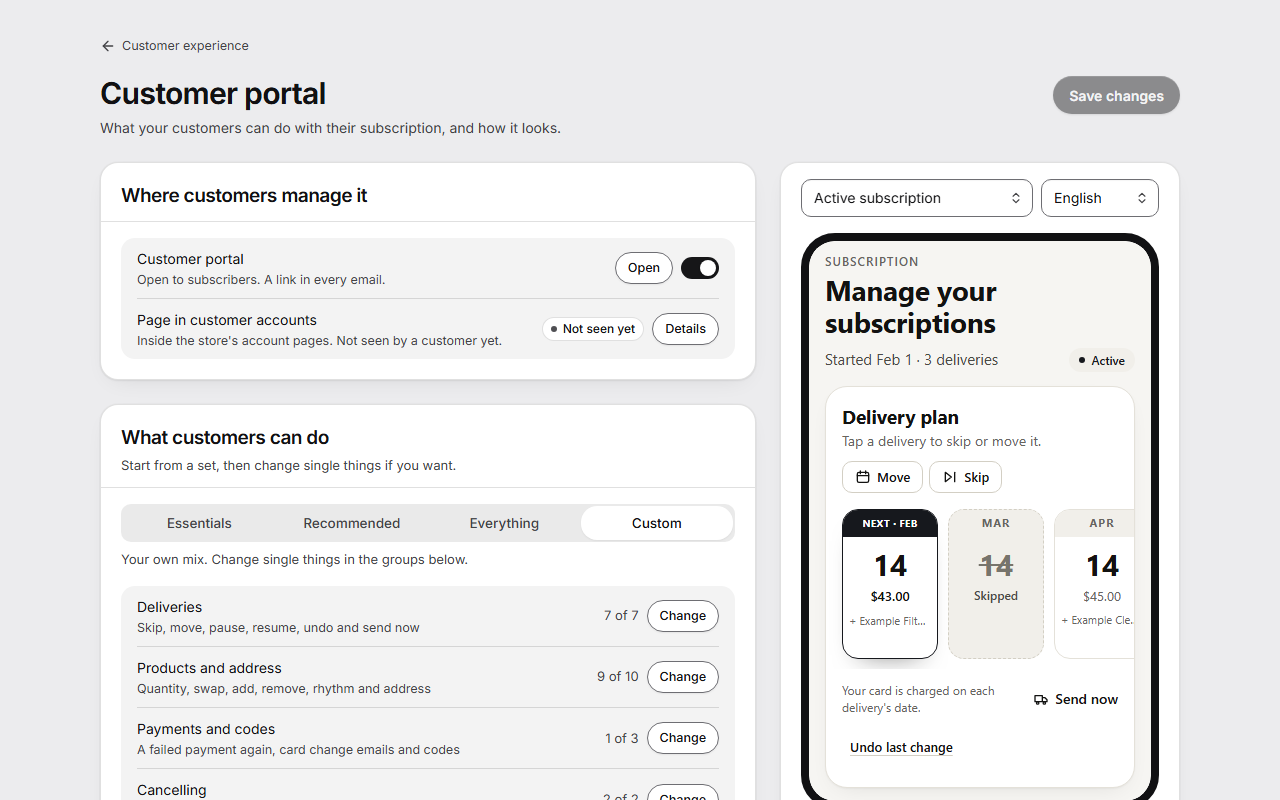
Choose what customers can do
- Under What customers can do, pick a set:
- Essentials: skip, move, pause for a set time and cancel. No changes to products or address.
- Recommended: the same, and they can change products and address. A good start for most stores.
- Everything: every switch on, including a product on its own rhythm and starting again after cancelling.
- To change single things, press Change in a row. Each row opens a window with its switches and limits. The set then shows Custom.
- Press Done to keep the window's changes, or Cancel to leave it as it was.
- Press Save changes. Nothing reaches customers before you save.
| Row | What customers can do | Limits |
|---|---|---|
| Deliveries | Skip a delivery, move a delivery, pause for a set time, pause until they start again, resume, undo the last change, send now | Skips in a row, how far ahead a delivery can move, pause lengths offered |
| Products and address | Change quantity, swap, add or remove a product, skip one product in the next delivery, add a one-time product, a product on its own rhythm, delivery rhythm, fixed day of the month, delivery address | Smallest delivery, most of one product |
| Payments and codes | Try a failed payment again, ask for an email to change their card, use a discount code | Which codes work |
| Cancelling | Cancel in the portal, start again after cancelling | Deliveries before they can cancel, days to start again |
In Products and address, Let customers edit their subscription is the switch for everything else in that window.
Change how it looks
Under Look, set Button color, Button text color, a Logo and the Heading. The words customers see are under Translations. Custom CSS is for a developer.
The preview beside the settings shows the real portal with your unsaved changes. Choose an Example, such as "Cancelling" or "Payment failed", and a language. On a phone, press See the preview.
How customers get there
- From the link in any email from your store. It opens their subscription without a password, and works for 7 days.
- Signed in to their account in your store, at your store's address followed by /apps/subscriptions/portal.
- From the page in Shopify's customer accounts, if you add it. See Show subscriptions in customer accounts.
- Anyone else can ask for a sign-in link with “Email me a link”.
What customers see
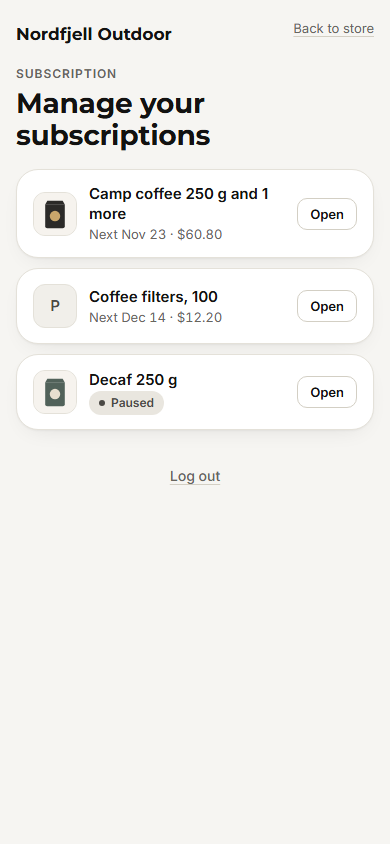
A customer with several subscriptions first sees a list, each with “Open”, or “Fix” where a payment failed.
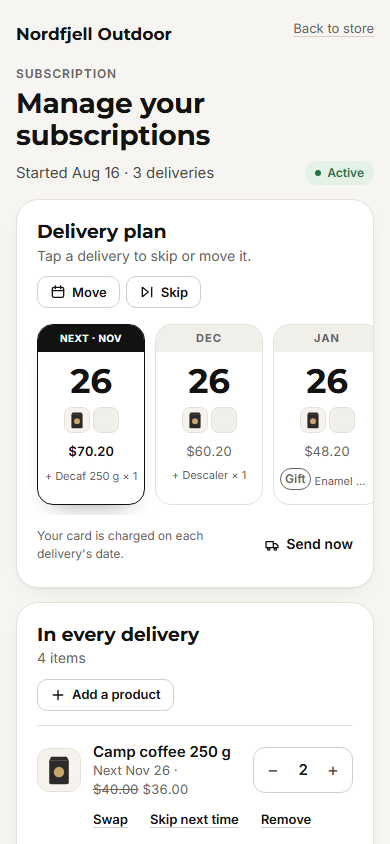
One subscription shows the “Delivery plan”: the next dates, each with its price. A tap on a date opens a window to skip or move that delivery. “In every delivery” lists the products, with − and + for the quantity, “Swap”, “Skip next time” and “Remove”, and “Add a product”. “Delivery and payment” holds the address, the card and the rhythm. “See how it adds up” shows the sum of the next delivery.
Changes that cost more ask first
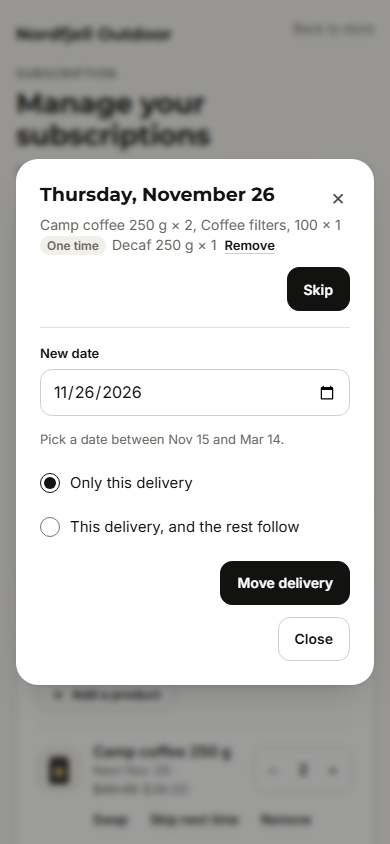
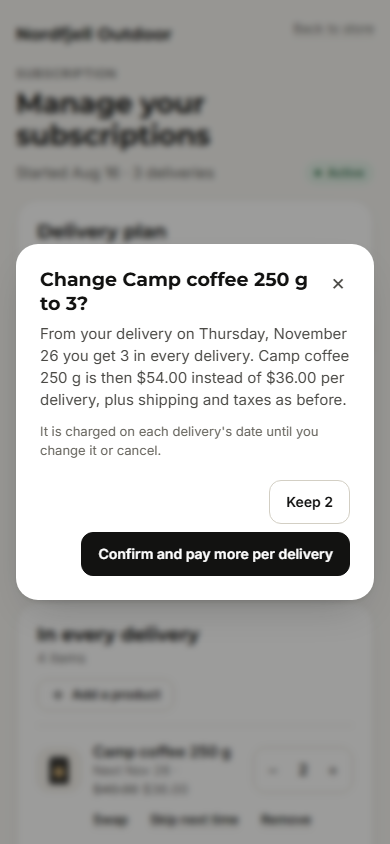
“Skip” at the top of the delivery plan asks first, in a window with the date, that nothing is charged or sent, and the delivery after it: “Keep it” or “Skip this delivery”. A skip or a move made in a date’s own window is saved when the customer presses it. Either way the message after it has “Undo”. A change to what is delivered first opens a window that says what it costs:
- Quantity: “Change Camp coffee 250 g to 3?” says from which delivery and what it then costs. The button says what the customer pays, such as “Confirm and pay more per delivery”, or “Confirm and pay $54.00 per delivery” when the whole delivery's price is known. Fewer is “Change to 1”. “Keep 2” closes the window.
- Swap: each product shows its price, and the button says “Swap and pay”, with the price per delivery.
- Add a product: “Add and pay”, with the price per delivery or once.
- Remove: “Remove Camp coffee 250 g?” with the new price, and “Yes, remove Camp coffee 250 g” or “Keep Camp coffee 250 g”.
Good to know
- While the portal is off, the rows show Off and can't be changed. Your choices come back when you turn it on.
- Limits bind your customers, in the portal and through the API. Your own changes in the app are not bound by them.
- Send now and Try a failed payment again need automatic charging on. A failed payment can be tried at most twice a day.
- Changing the card needs Shopify's approval of customer and payment-method access. Until then, the portal asks the customer to contact you.
- Discount codes in the portal are part of Growth. Only the codes you list work, one at a time, each once per customer.
- A link from an email can skip, move, pause and cancel. For anything else, the customer signs in, because an email can be forwarded.
- If your customers use a page of your own, the top card says so, with Use this portal again to switch back.
- The shelf of products to add is on its own page, see Add-ons. The offers before cancelling are under Cancellation.