Norse Subscriptions help
Change one subscription
Skip or move a delivery, change the rhythm, pause, or change the products on one subscription.
This article helps you change one customer's subscription: its deliveries, rhythm, products and more. Open it from Subscriptions.
Find the subscription
- Open Subscriptions. The list opens on Active, with tabs for Paused, Ended and All.
- Search by customer, email, product or order number, or use Filter and sort.
- Press a row to open the subscription.
The page shows the next deliveries, what comes in each, the value, the payments and the history.
Skip or move a delivery
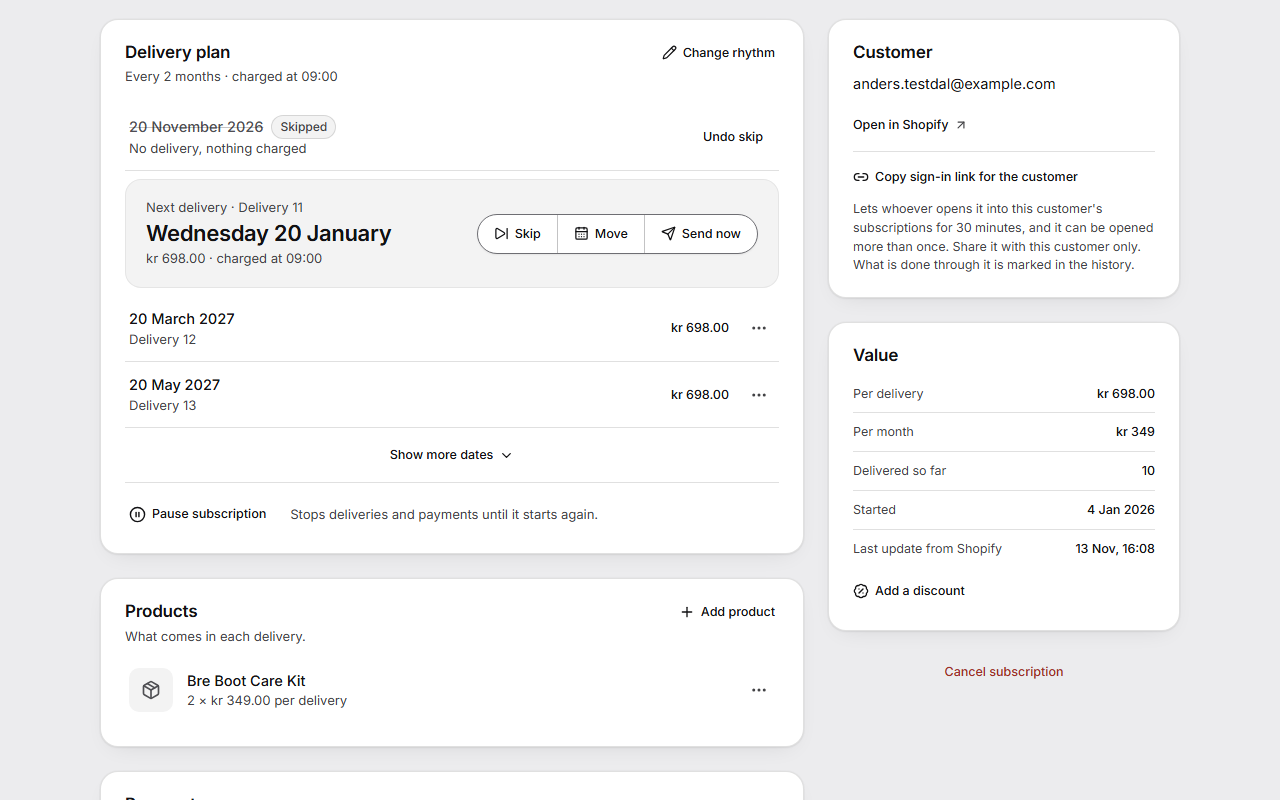
- Under Delivery plan, the next delivery has Skip, Move and Send now.
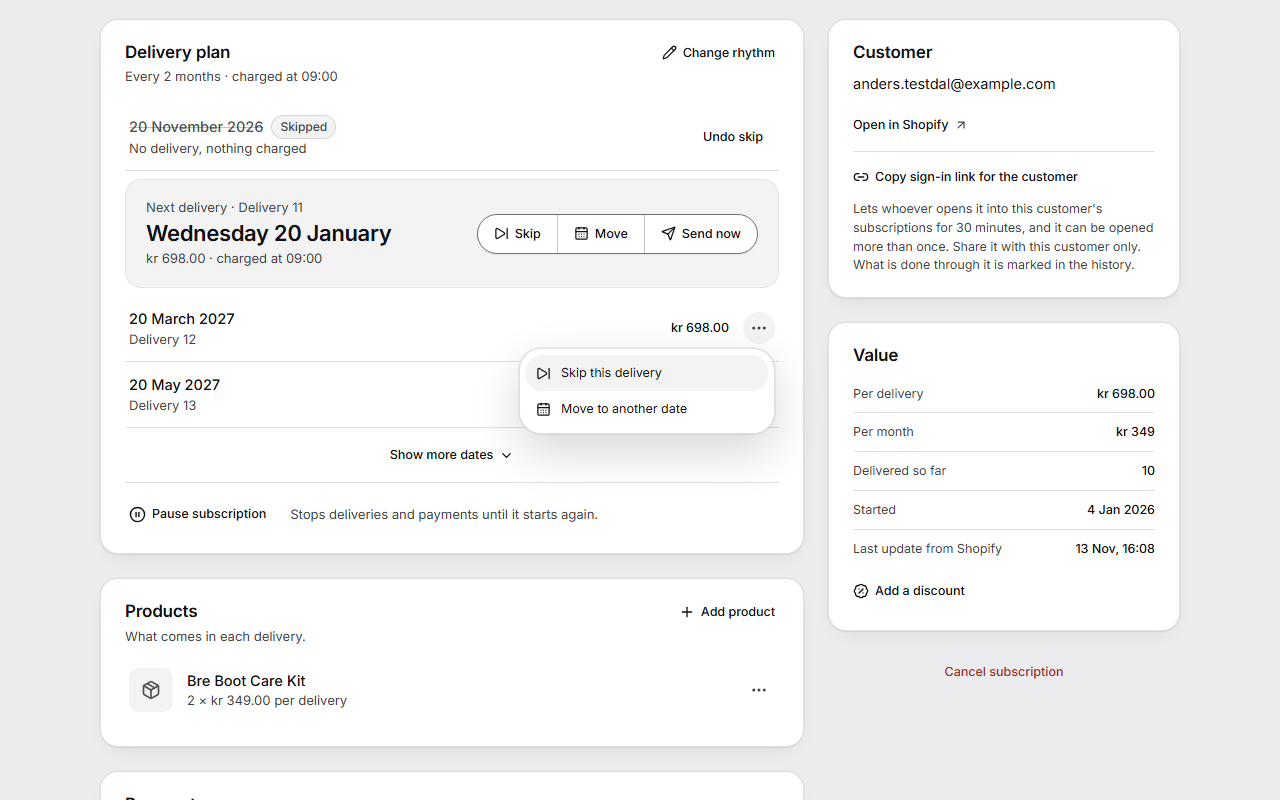
- For a later date, press the … beside it and choose Skip this delivery or Move to another date.
- When you move a delivery, choose the New date. Under What about the deliveries after it?, choose They stay where they are or They follow, in the same rhythm.
- Press Move delivery. The customer is charged on the new date.
A skipped date shows Undo skip, which takes the skip back.
Send a delivery now
- Press Send now beside the next delivery.
- The window Send a delivery now? says roughly what the customer is charged.
- Press Charge and send. The customer is charged and the order is created at once. The rhythm then continues from today.
Change the rhythm
- Press Change rhythm at the top of Delivery plan.
- In Change the rhythm, choose Every and the Unit, and if you like the Next delivery (optional). The new dates show before anything is saved.
- If a skipped or moved date isn't in the new rhythm, the window lists it. Tick I understand they fall away.
- Press Save rhythm.
Pause or resume
- Press Pause subscription under the delivery plan.
- Under How long, choose 1, 2, 3, 6 or 12 months, after which deliveries start again, or Until I resume it.
- Press Pause.
To start it again before then, press Resume subscription, or Resume deliveries for a pause with an end date.
Change the products
- Under Products, press the … beside a product and choose Change quantity or Replace product.
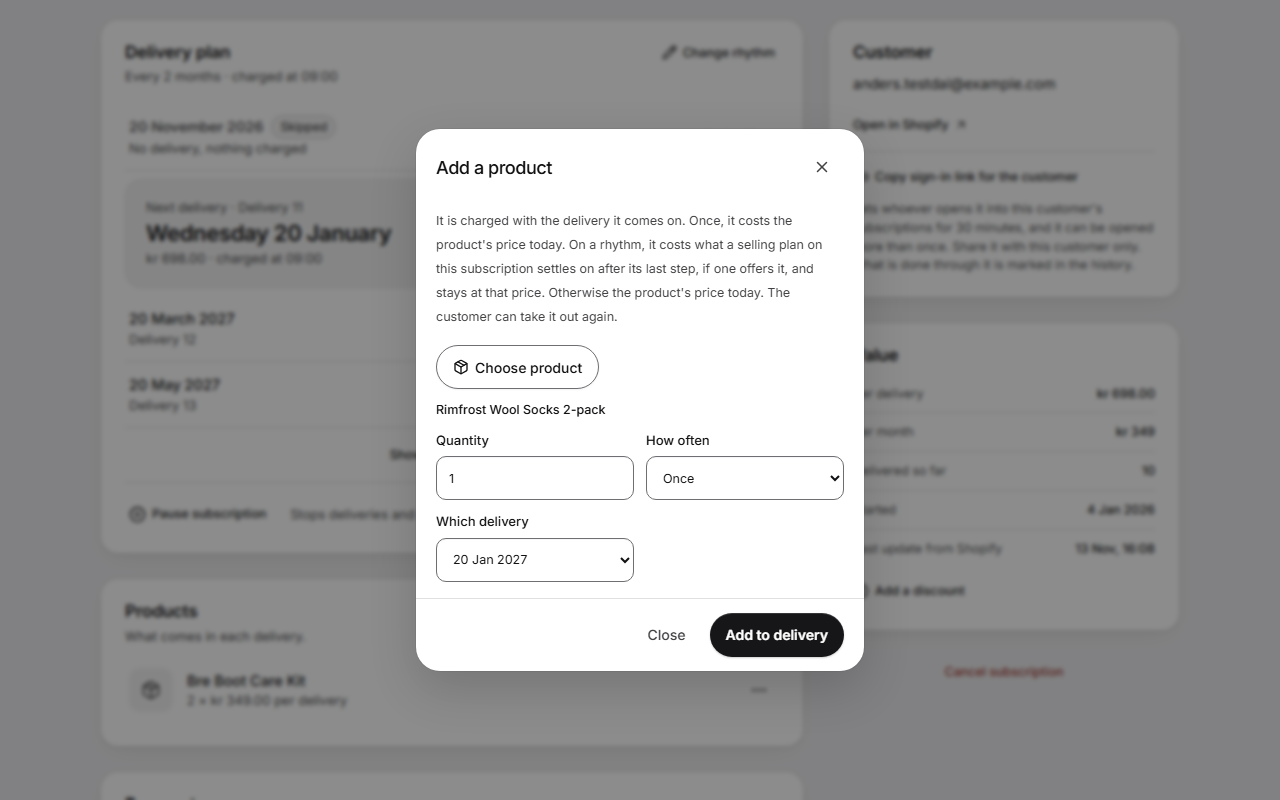
- To add a product, press Add product at the top of the card. The window Add a product opens.
- Press Choose product, then set Quantity and How often: Once, Every delivery, Every other delivery or Every third delivery.
- For Once, choose Which delivery.
- Press Add to delivery.
What is added to one delivery, or left out of the next one, is listed under the products with Remove.
More on the page
- Add a discount, under Value, gives a percentage off 1 to 12 coming orders, on top of existing discounts. Shipping isn't discounted.
- Copy sign-in link for the customer, under Customer, makes a link into this customer's subscriptions in the portal that works for 30 minutes. Share it with that customer only.
- The … at the top, More for this subscription, has Open in Shopify, Send welcome email again and Change delivery address.
- Undo last change shows at the top after a change.
- Cancel subscription is at the foot of the side column. The window Cancel this subscription? asks first. Shopify can't start a cancelled subscription again. Where you allow it, the customer can start again from the portal, which makes a new subscription.
- History lists every change and payment, the latest first, with who did it.
Good to know
- Every change shows the new dates before you save it. It is saved at once, and Shopify follows.
- When you change the address, Shopify is asked what shipping to the new address costs before anything is saved. The customer gets no email about a change you make. Changing addresses needs Shopify's approval of the app's access to customer data.
- Prepaid subscriptions can't be changed for one delivery, so you can't add to or leave something out of a single delivery on them.
- An active subscription whose date has passed without a charge says Due since and the date, with why when the page knows.
- If the result of a change couldn't be confirmed, further changes and charges on that subscription stop until you answer under Discount requests and change review. The customer can still pause or cancel.